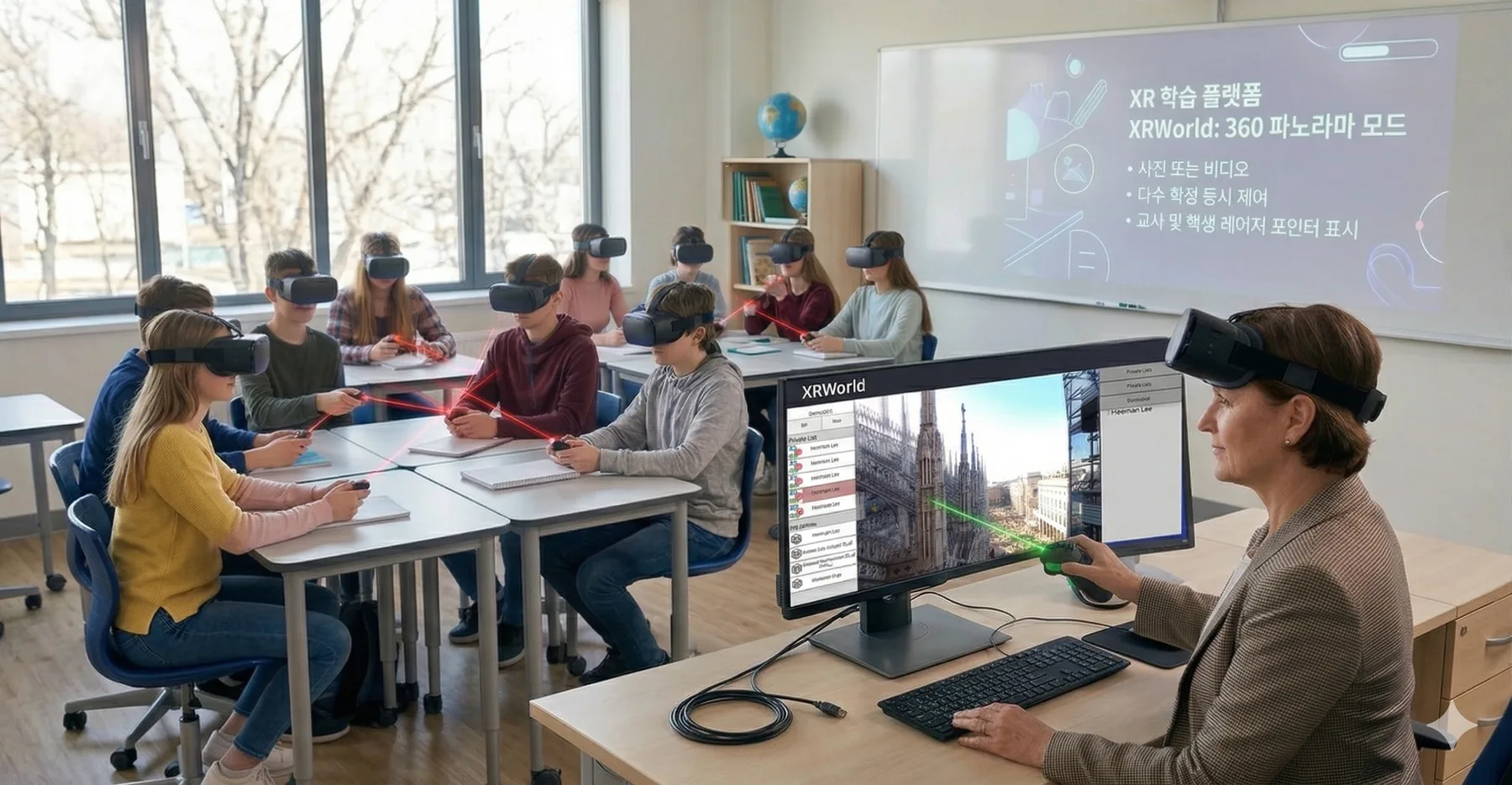
LEARNING MODE 01
360 Panorama mode
360° photos and videos bring learners right into the middle of the scene.
- Maximum presence · Look around the whole 360° space just by turning your head.
- Synchronized viewing · Every student sees the scene the teacher shows at the same moment.
- Interaction · Teachers and students share a laser pointer to point at the same place.
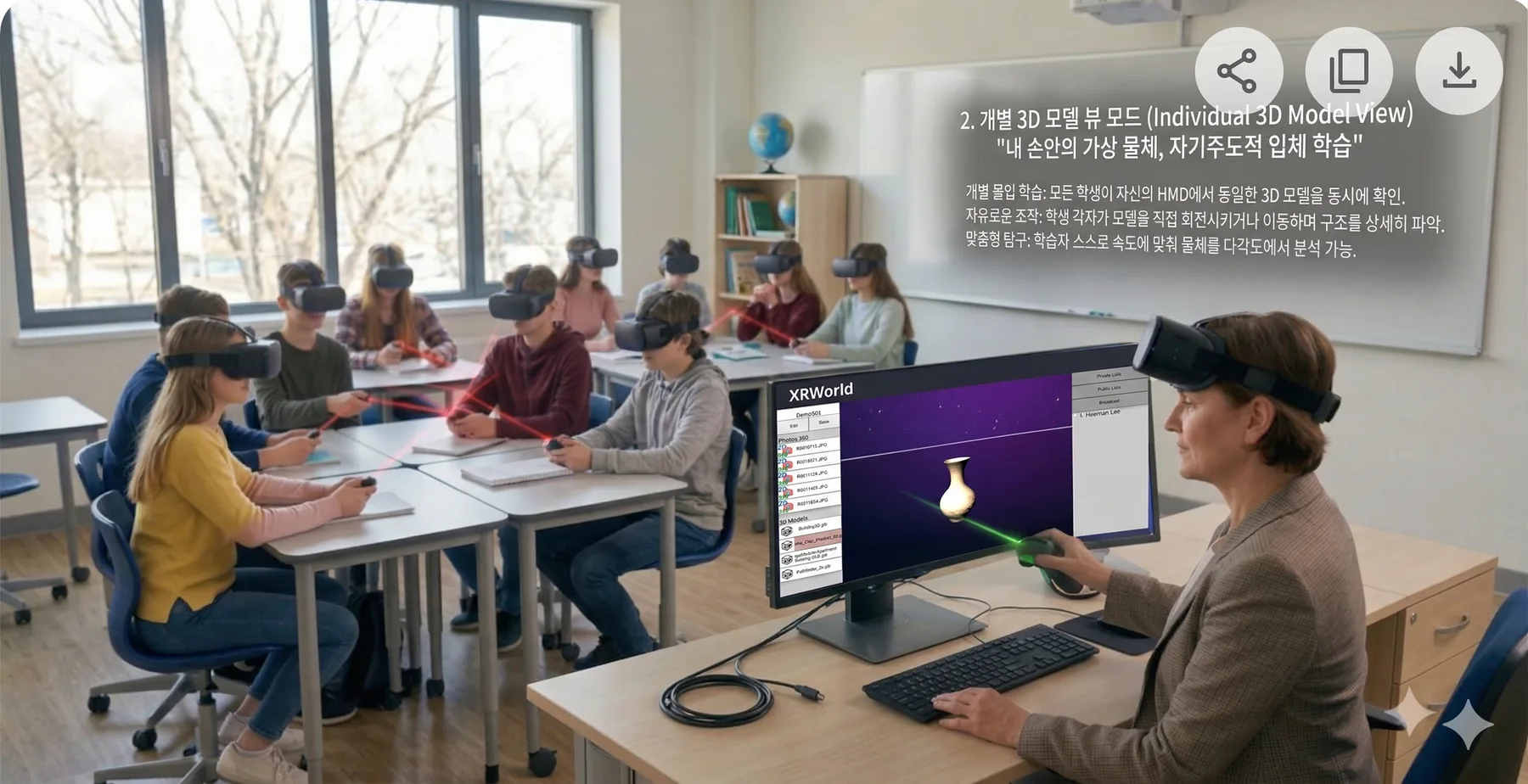
LEARNING MODE 02
3D Model Individual View
Handle 3D models directly for deep, self-directed learning.
- 1:1 immersion · Each student examines the model on their own VR headset.
- Full control · Everyone rotates and moves the model freely.
- Personalized exploration · Analyze the parts you want in detail at your own pace.
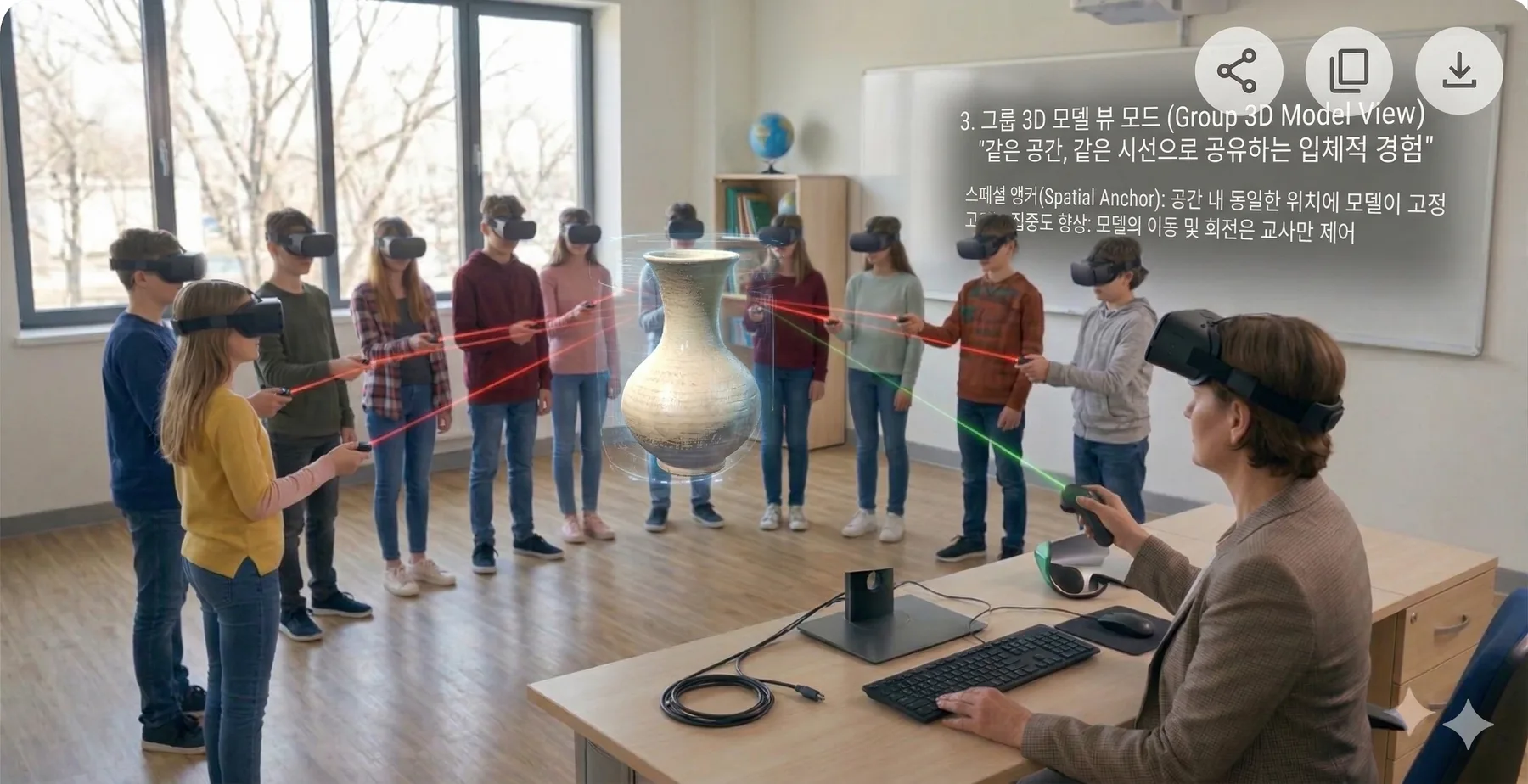
LEARNING MODE 03
3D Model Group View
Place a virtual object in the real classroom and look around it together.
- Spatial sync · A spatial anchor fixes the model at the same spot in the real classroom.
- Teacher-led control · Only the presenter chosen by the teacher moves and rotates it, so attention stays focused.
- Collaborative observation · Share a pointer to discuss specific parts together.
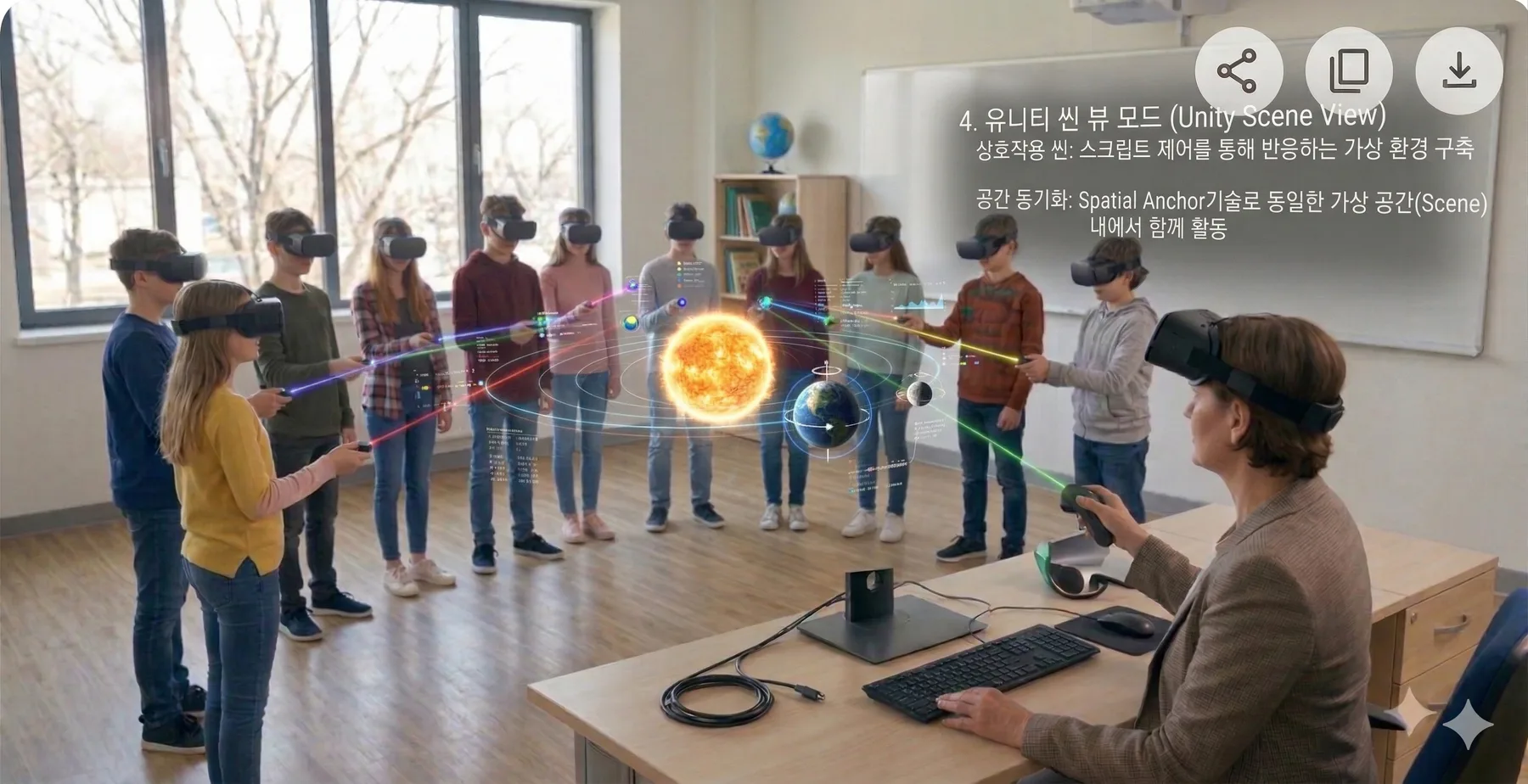
LEARNING MODE 04
Unity Scene View
Interact with a variety of scenarios inside rich virtual environments.
- Dynamic environments · Scripted virtual worlds that move and respond.
- Full scene sync · The whole class acts together in the same scene in real time.
- Simulation · Learn through complex scenarios such as science experiments and historical recreations.